Welcome to the KUE App Installation Guide
This guide walks you step by step through downloading, installing,
and setting up your KUE account—so you can start engaging members, sponsors, and attendees in minutes.
If you run into any issues, our support team is here to help—just reach out to us at lcuneo@mojavie.com for immediate assistance.
For iOS (Apple) Devices:
1. Use the built-in camera app on your iPhone.
2. Point your camera at the QR code provided below. Ensure the QR code is centered and clear.

3. Once the camera recognizes the QR code, a notification will appear. Tap it to open the App Store.
4. In the App Store, tap the "Get" button next to our app’s icon. Confirm any prompts to start the download.
5. After the download completes, tap "Open" or find our app on your home screen and tap to launch.
For Android Devices:
1. Most Android phones have a built-in QR code scanner in the camera app. 2. Point your camera at the QR code provided below. Ensure the QR code is centered and clear.
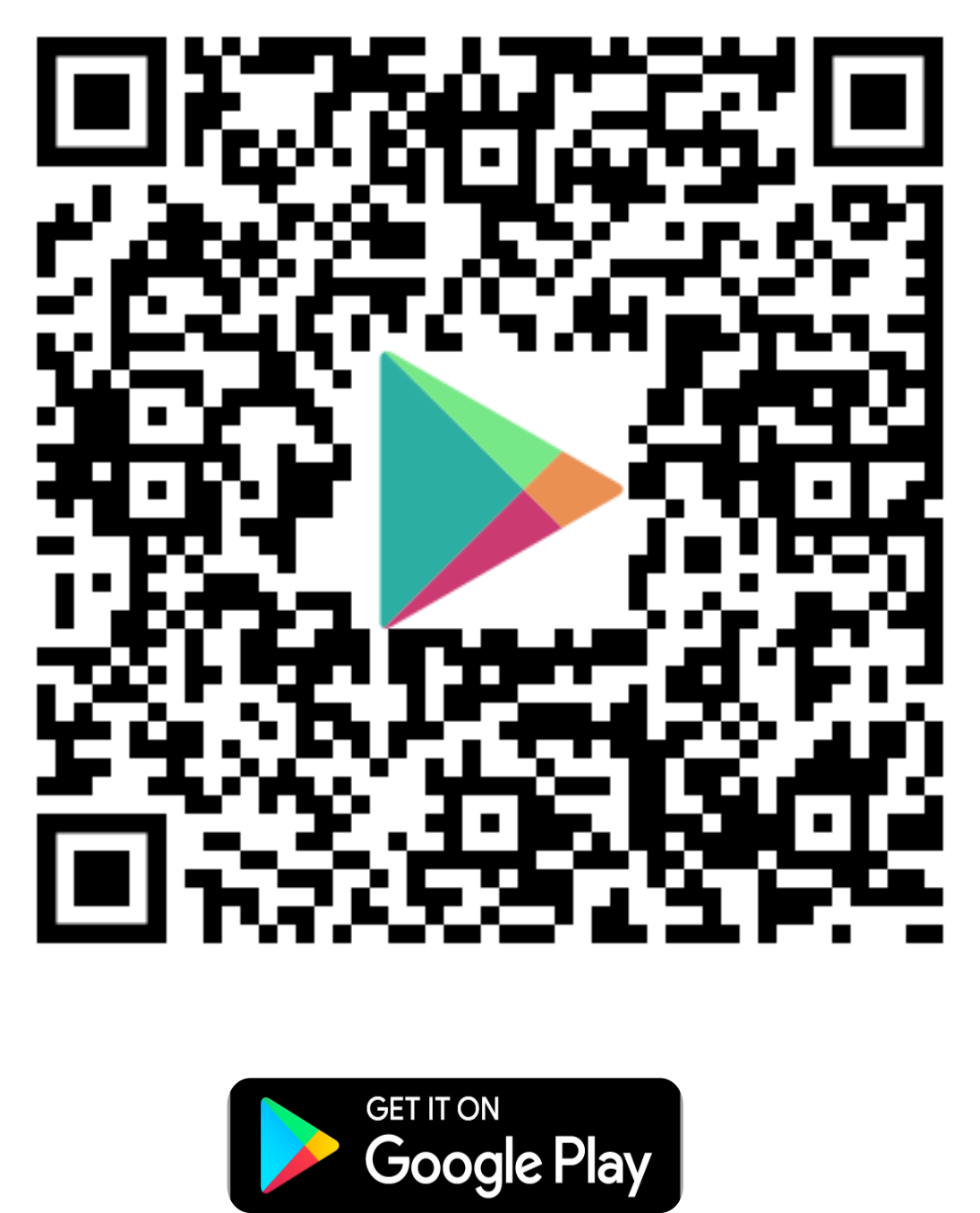
3. Once the camera recognizes the QR code, a notification will appear. Tap it to open the Google Play Store.
4. In the Google Play Store, tap the "Install" button next to our app’s icon. Confirm any prompts to start the download.
5. After the download completes, tap "Open" or find our app in your app drawer and tap to launch.
1. Use the built-in camera app on your iPhone.
2. Point your camera at the QR code provided below. Ensure the QR code is centered and clear.
3. Once the camera recognizes the QR code, a notification will appear. Tap it to open the App Store.
4. In the App Store, tap the "Get" button next to our app’s icon. Confirm any prompts to start the download.
5. After the download completes, tap "Open" or find our app on your home screen and tap to launch.
For Android Devices:
1. Most Android phones have a built-in QR code scanner in the camera app. 2. Point your camera at the QR code provided below. Ensure the QR code is centered and clear.
3. Once the camera recognizes the QR code, a notification will appear. Tap it to open the Google Play Store.
4. In the Google Play Store, tap the "Install" button next to our app’s icon. Confirm any prompts to start the download.
5. After the download completes, tap "Open" or find our app in your app drawer and tap to launch.
Creating your personalized KUE profile is your gateway to fully immersing yourself in the vibrant KUE community. A unique profile allows you to share your contact information, connect your social media accounts, and build meaningful connections with peers. Follow these simple steps to craft your personalized KUE profile:
1. Tap on the KUE icon on your home screen to open it.
2. New users tap "Sign Up".
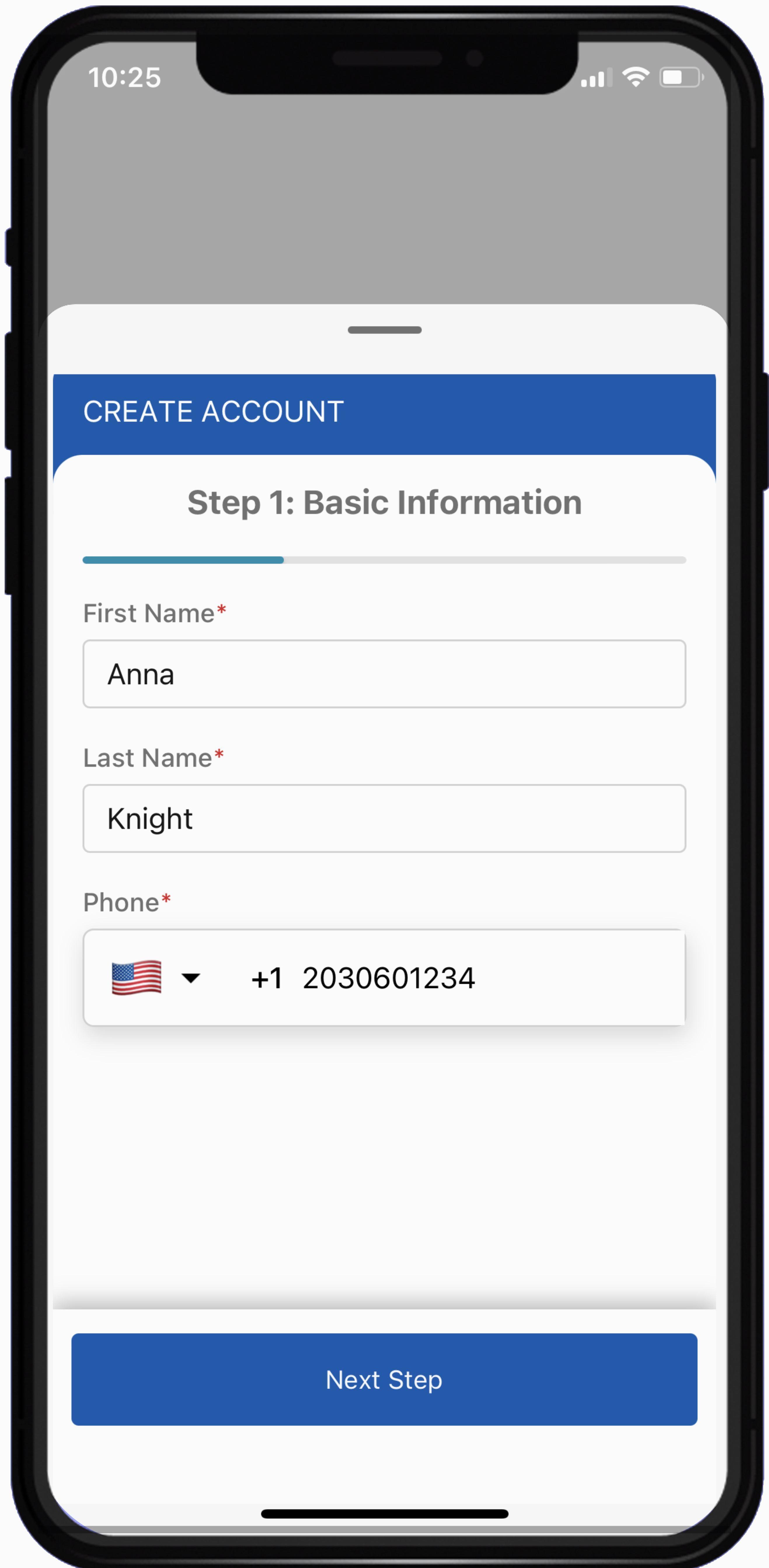
STEP 1: Basic Information
Click on the "Next Step" button
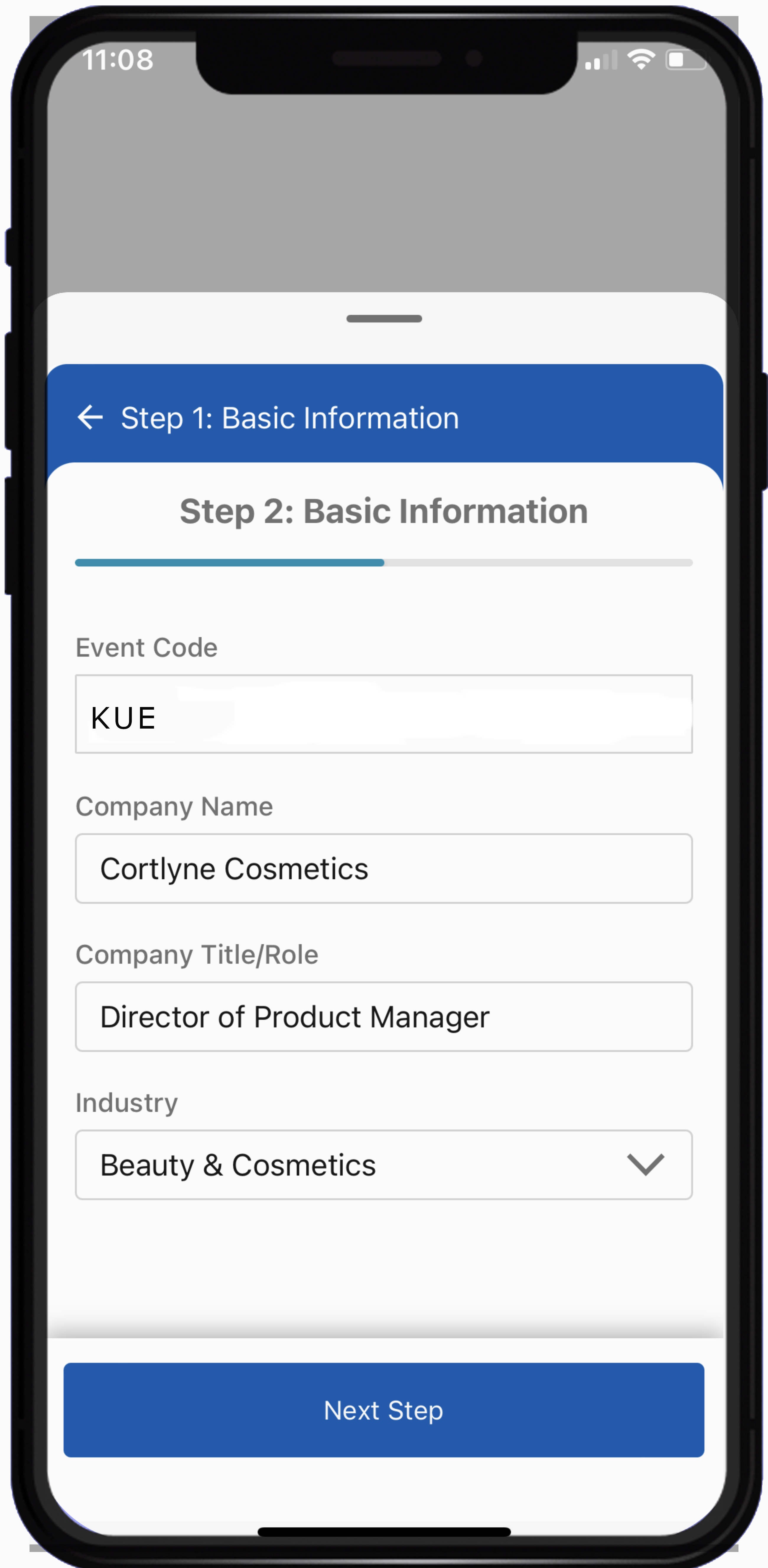
STEP 2: For this section add the following:
Click on the "Next Step" button
STEP 3: For this section add the following:
Click on the "Next Step" button
STEP 4: For this section add the following:
Click on the "Next Step" button
Final Step: Your Profile is Ready You’ve successfully created your KUE profile—now you’re all set to share and connect with the vibrant KUE community!
Click on the "OK" button
1. Tap on the KUE icon on your home screen to open it.
2. New users tap "Sign Up".
STEP 1: Basic Information
- Add your first and last name.
- Add your mobile number. The default country is USA
Click on the "Next Step" button
STEP 2: For this section add the following:
- Event Code: Enter KUE
- Company Name: Enter your company name
- Title/Role: Add your title
- Industry: Select industry from list of options.
Click on the "Next Step" button
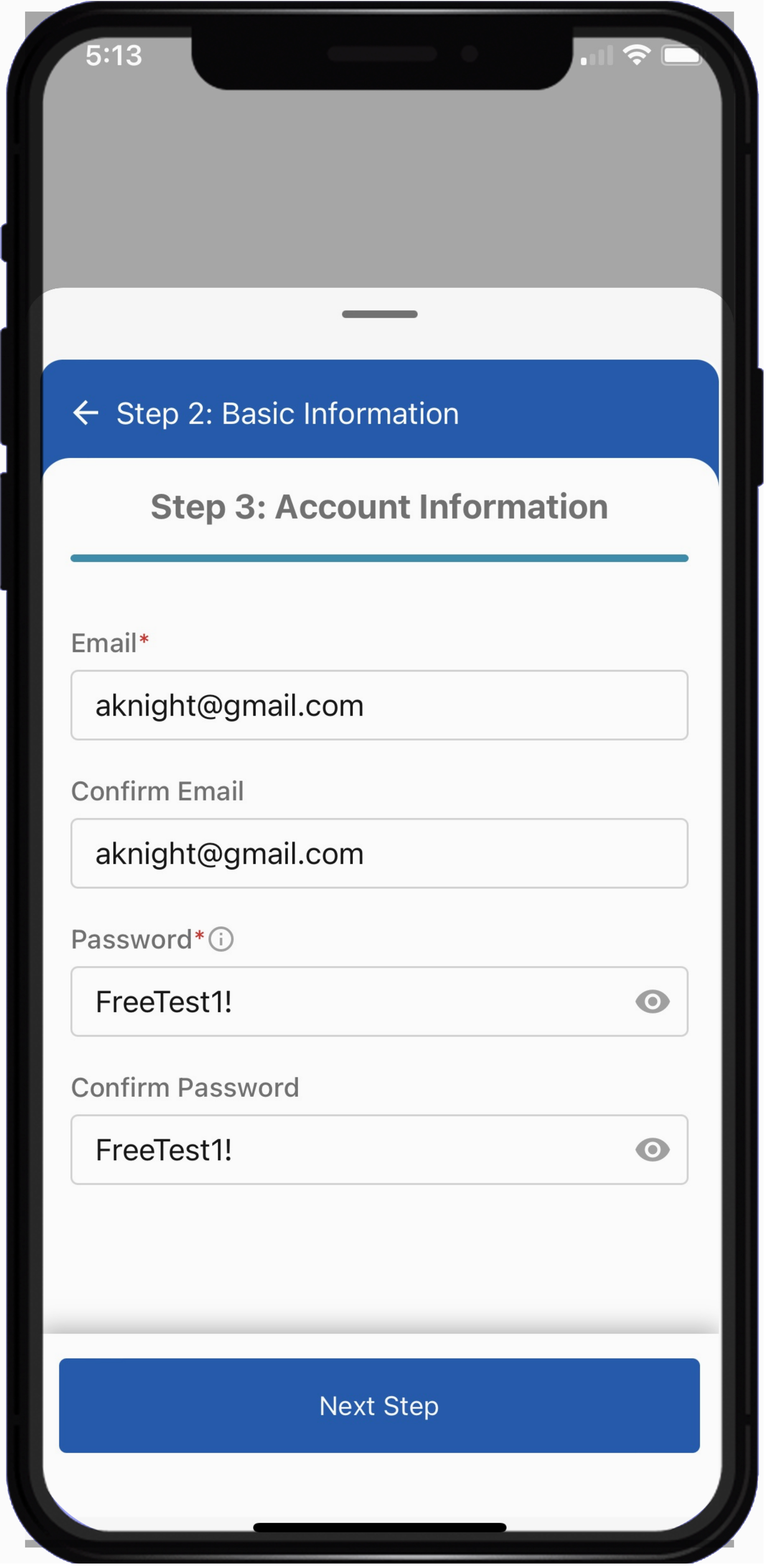
STEP 3: For this section add the following:
- Email: Enter your email address,
- Confirming Email: Retype your emai address.
- Password: Type a password. Must contain 1 uppercase (A-Z), 1 lowercase (a-z), 1 numeric value (0-9) and 1 special character (!@#$%).
- Confirming Password: Retype your password.
Click on the "Next Step" button
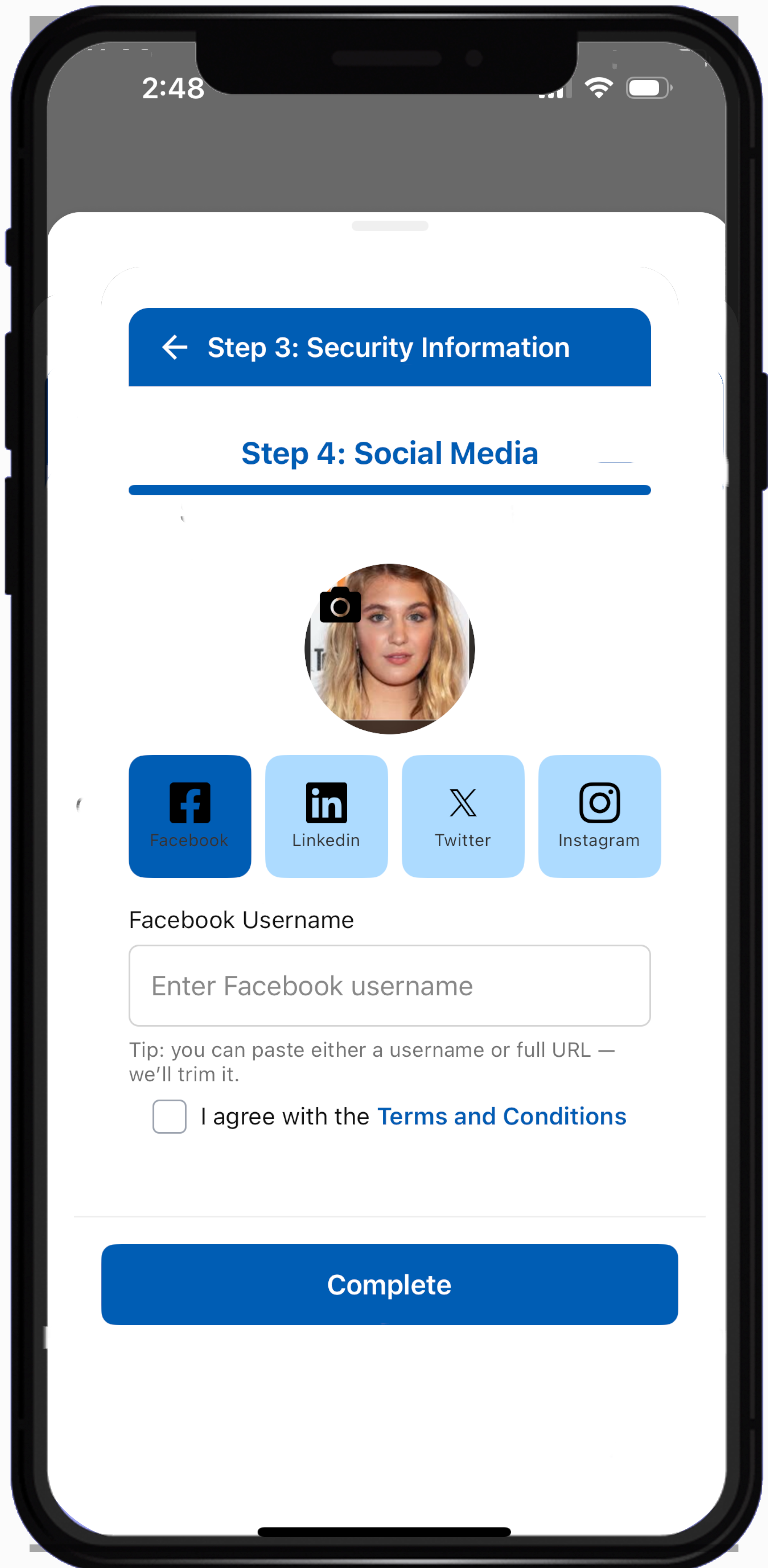
STEP 4: For this section add the following:
- Photo: Click on the photo icon to select photo.,
- Facebook:Click the Facebook logo, then enter your profile name (e.g., annaknight.908).
- Social Media Linkedin: Add your LinkedIn ID ie (annaknight)
- Social Media X: Add your X ID ie (annaknight)
- Social Media Instgram: Add your Instgram ID ie (annaknight)
- Terms and Conditions: Click on the box to accept T's & C's.
Click on the "Next Step" button
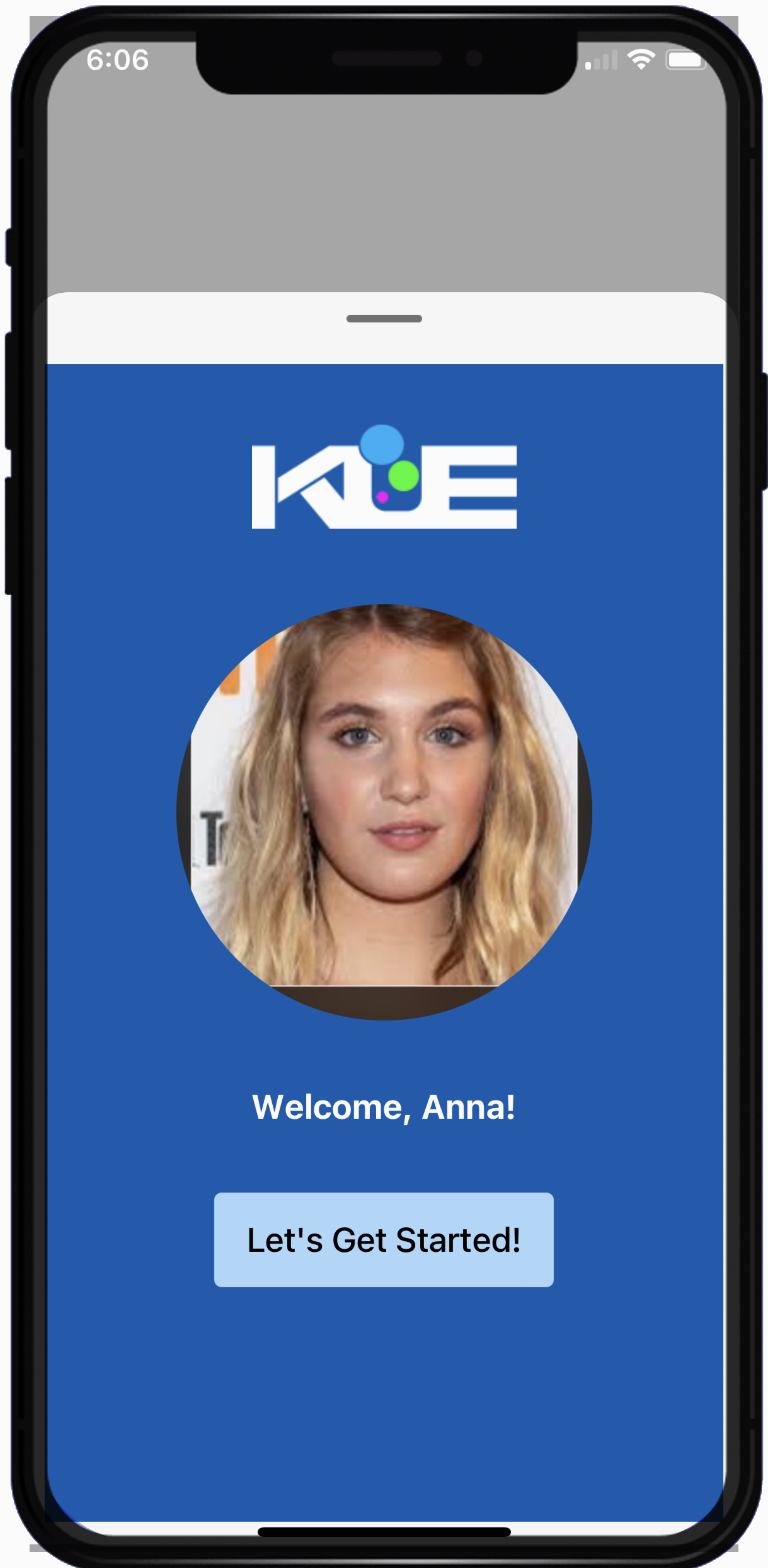
Final Step: Your Profile is Ready You’ve successfully created your KUE profile—now you’re all set to share and connect with the vibrant KUE community!
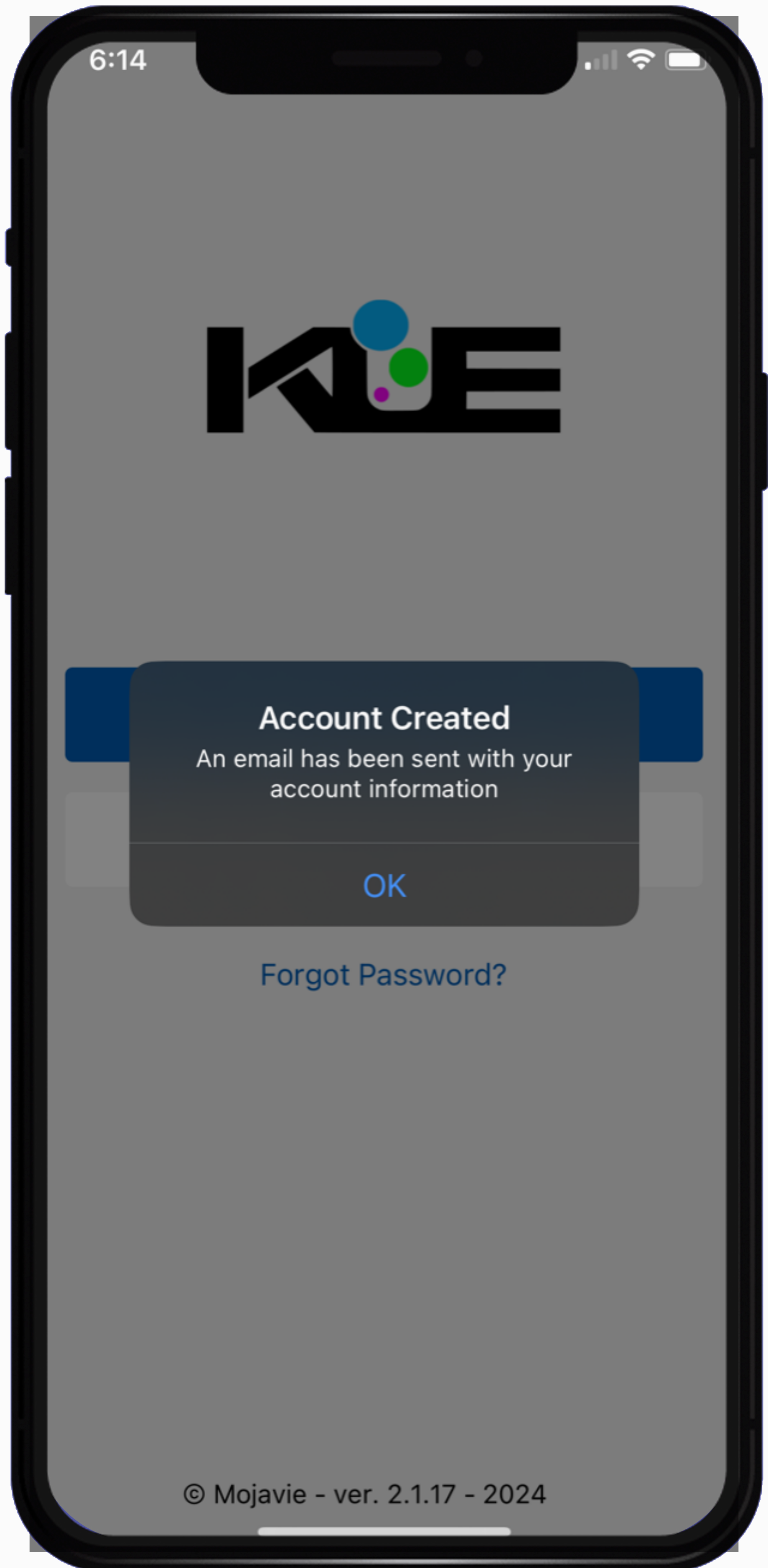
Click on the "OK" button
Welcome back! These instructions will guide you through using the KUE app during the event. Let’s dive in!
STEP 1: Click the LOGINbutton

STEP 2: Sign-in: Enter your user credentials.
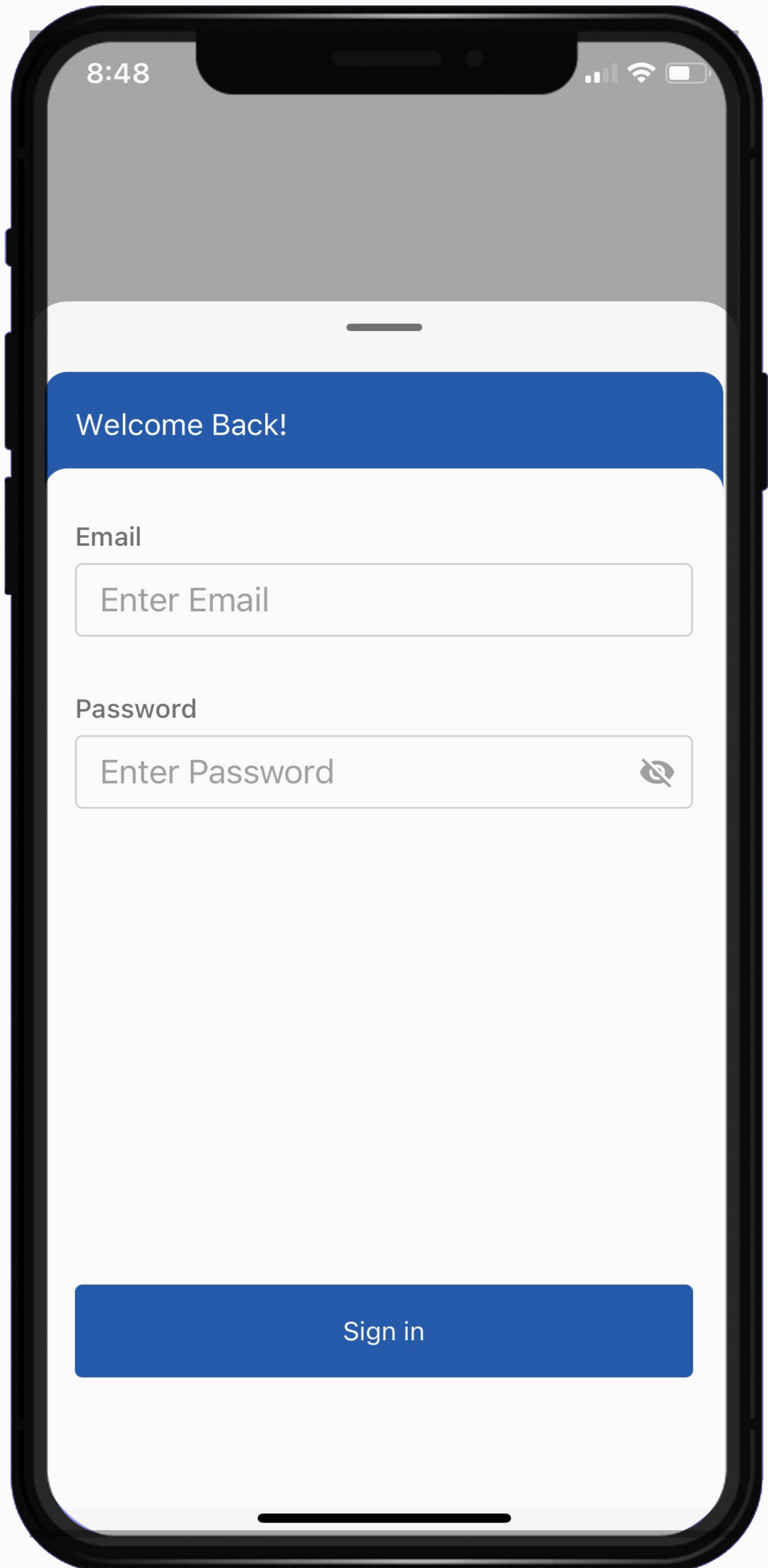
Click on the "Sign in" button
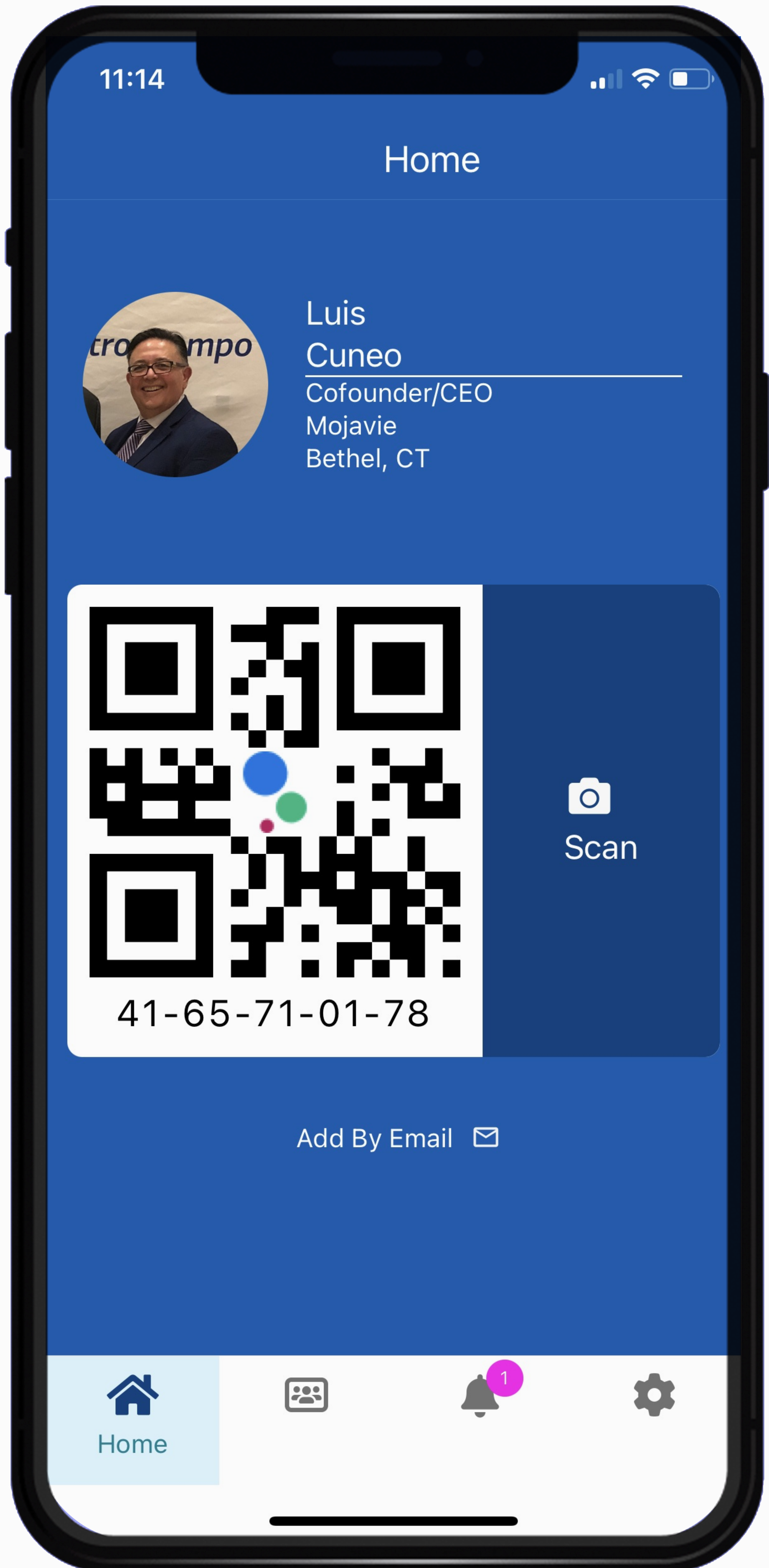
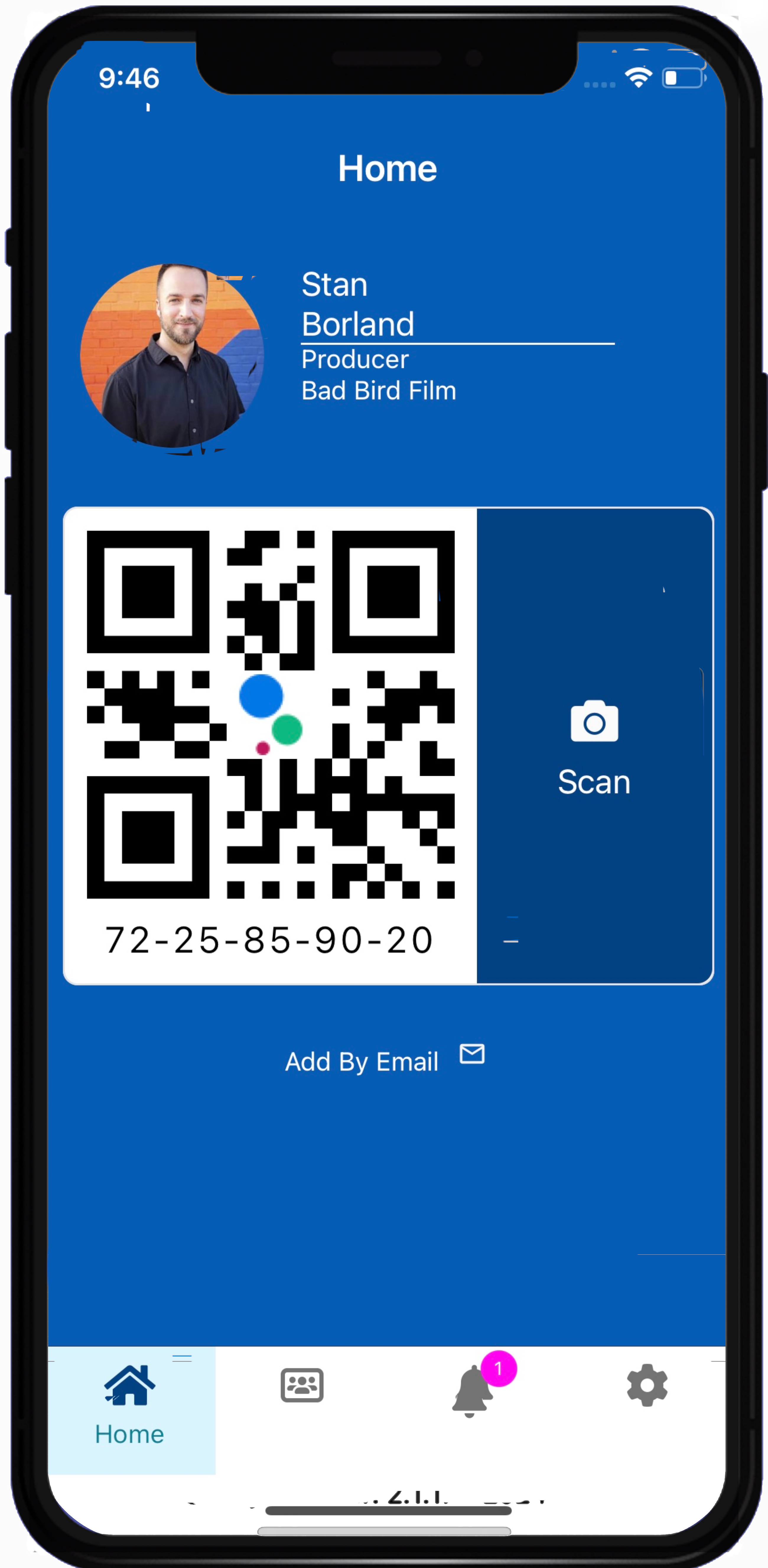
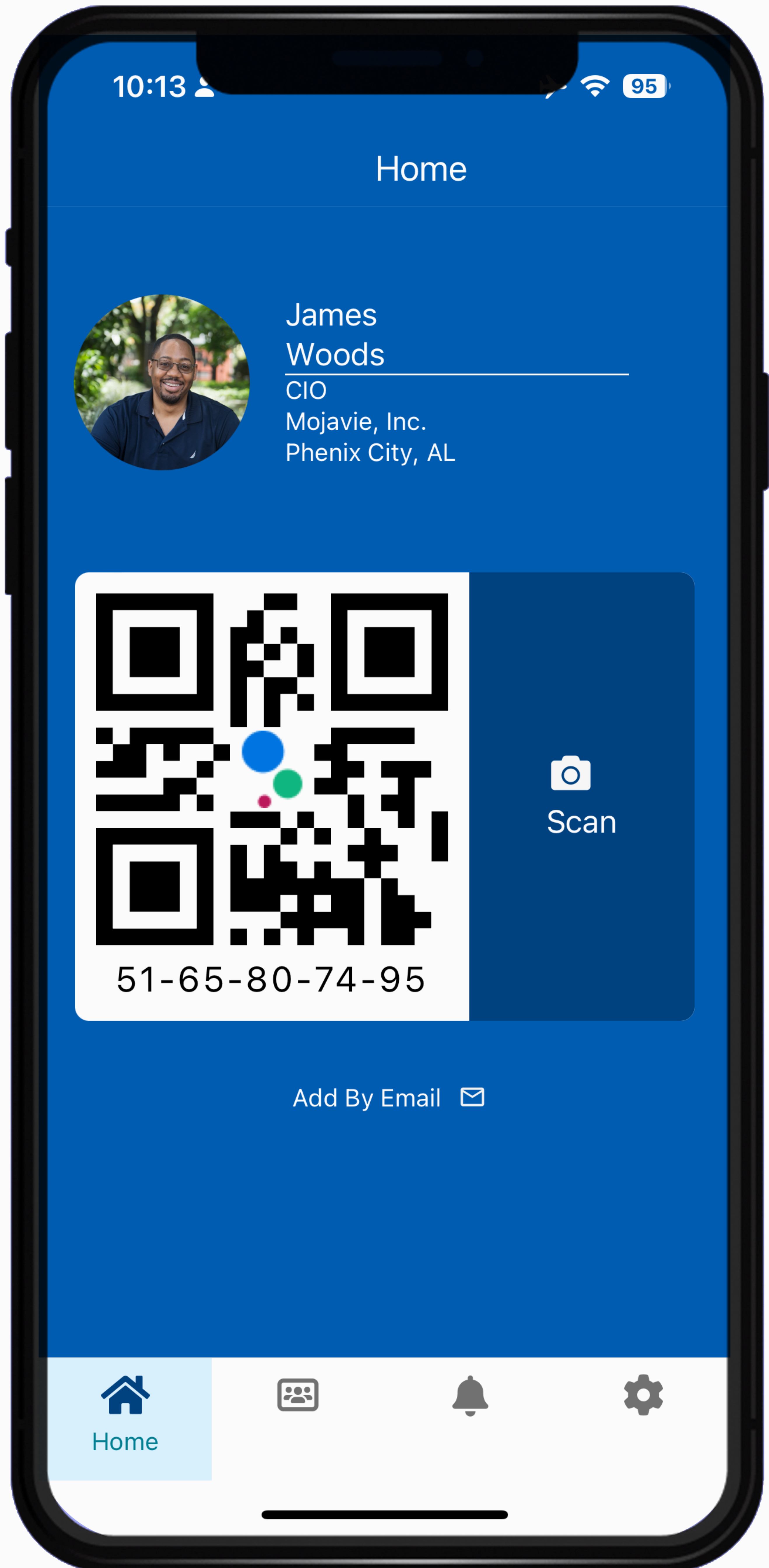
Step 3: KUE HOME: This is the KUE HOME screen.
Explore these KUE features:
Step 4: Adding contact.
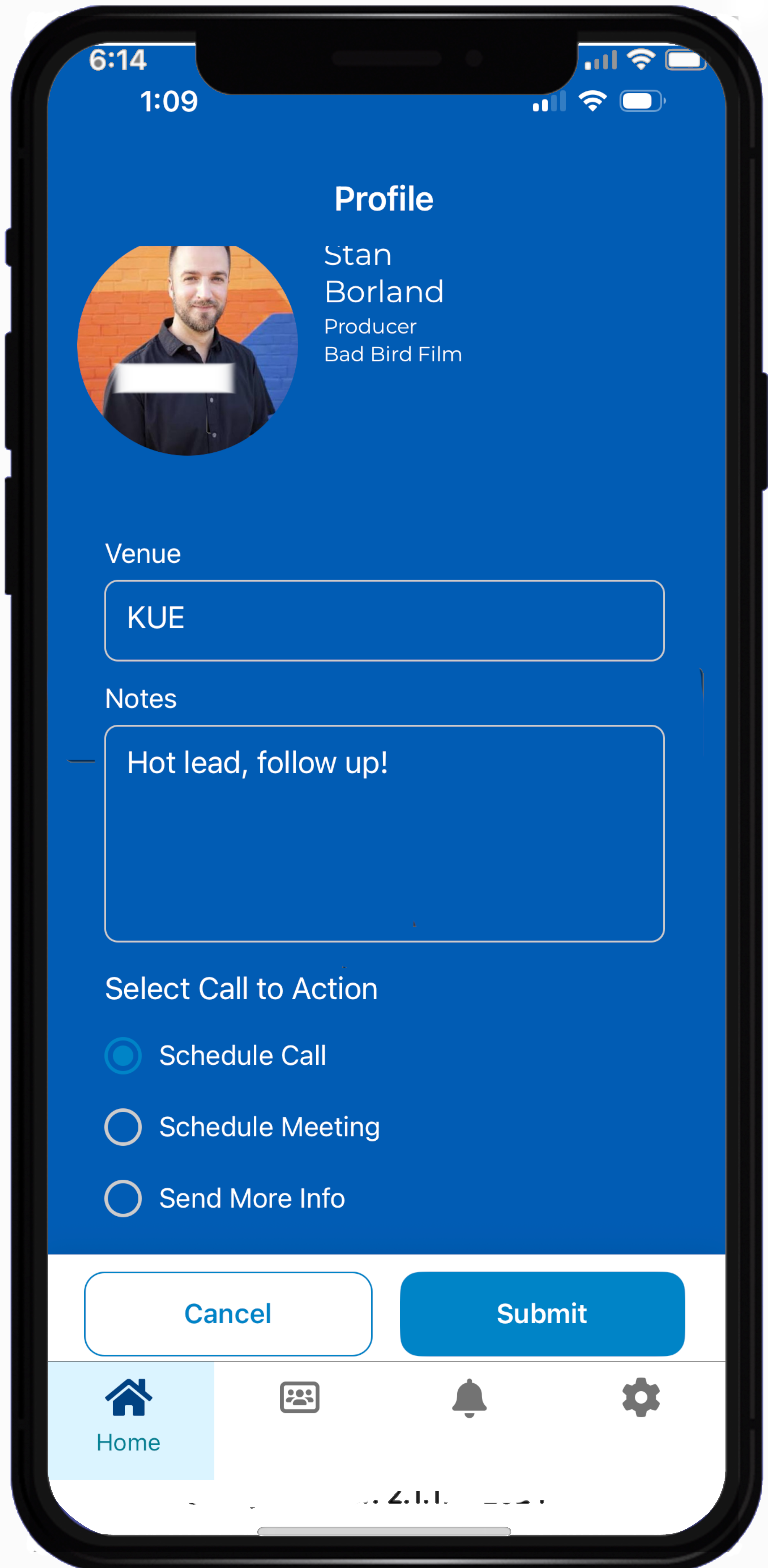
Venue and Notes:
Let's connect on the KUE app!
STEP 1: Click the LOGINbutton
STEP 2: Sign-in: Enter your user credentials.
- Enter your email address
- Enter your password
Click on the "Sign in" button
Step 3: KUE HOME: This is the KUE HOME screen.
Explore these KUE features:
- Add a contacts by scanning their KUE QR code.
- View and manage contacts.
- Accept or decline KUE invites request.
- Update your user profile.
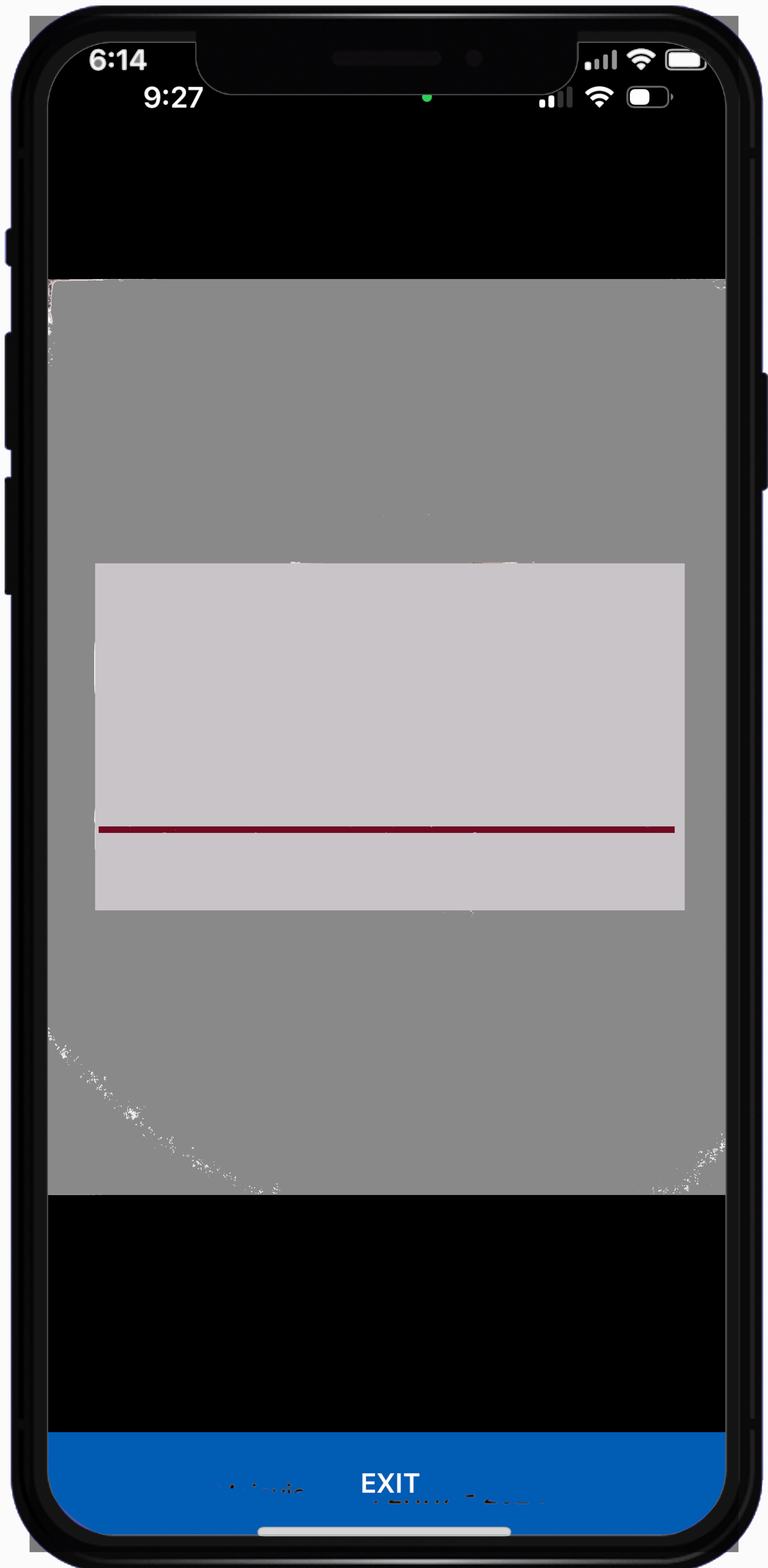
Step 4: Adding contact.
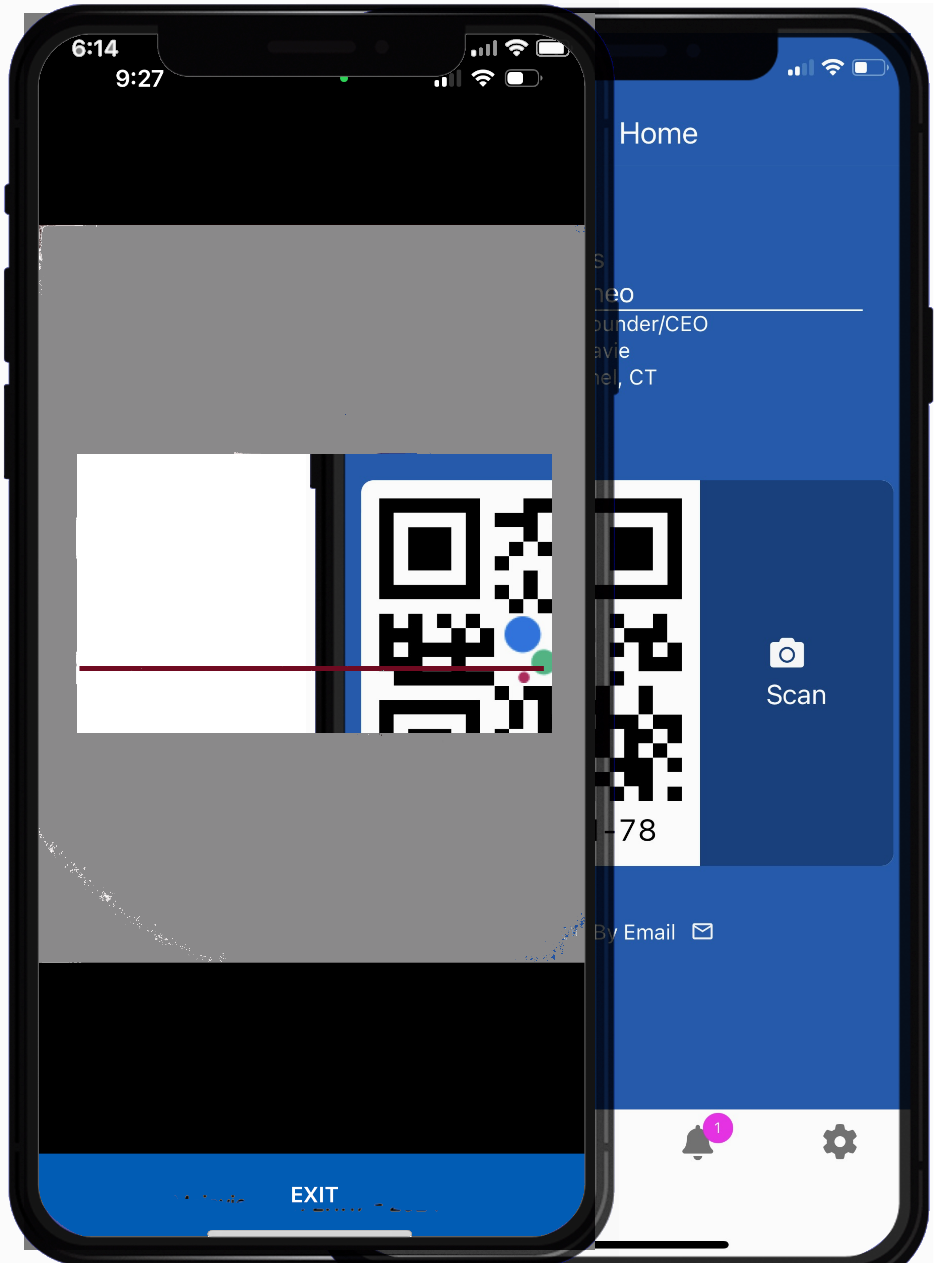
- Tap the Scan Icon on the home screen.
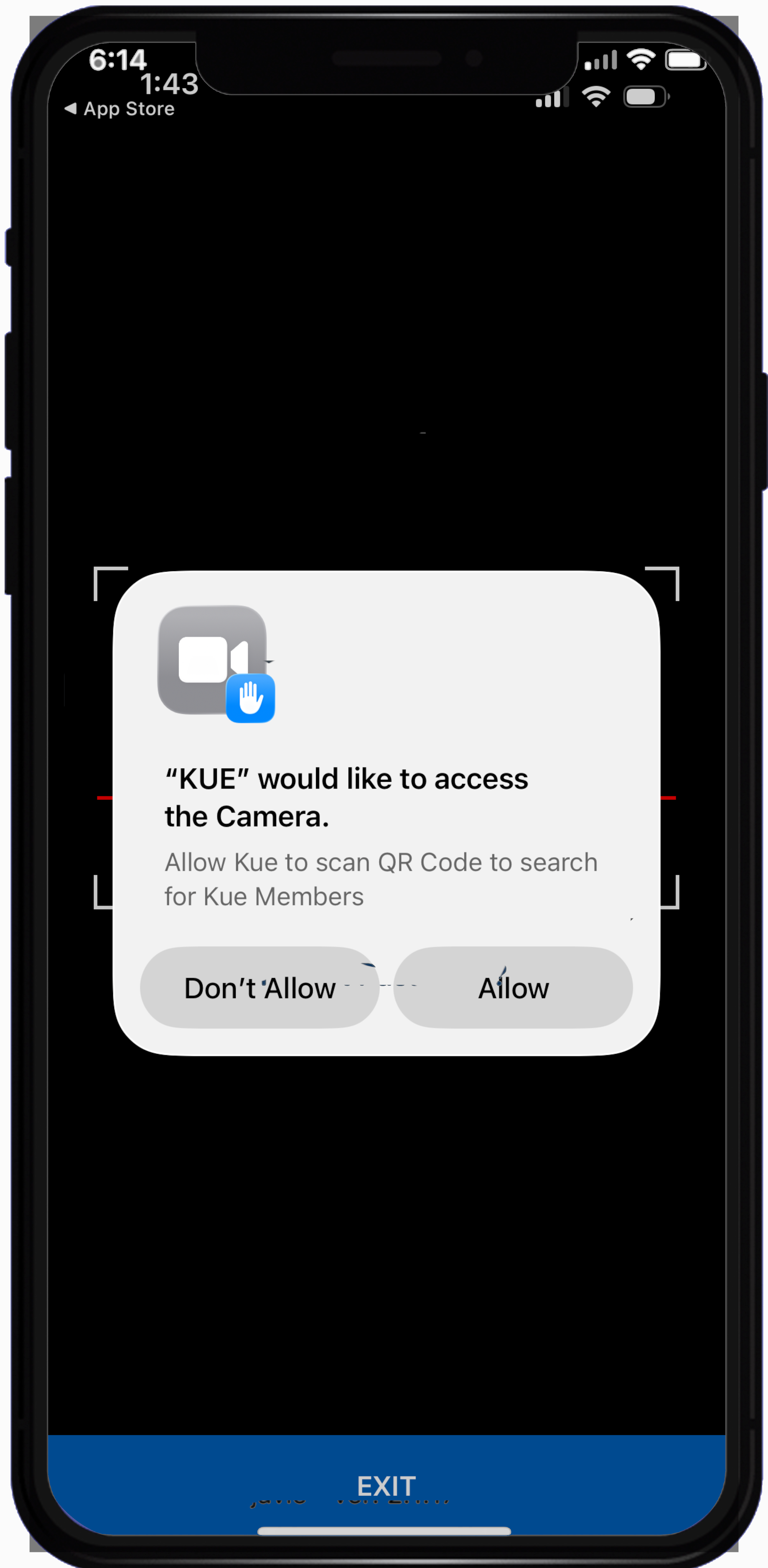
Point your phone to the target KUE QR code.
Automatic Scan: The KUE app will automatically scan the QR code, and the person’s profile will appear on your screen.
- Default venue is the Chamber name or event name.
- For the Notes section, jot down key points to remind you of your conversation.
- Select a call to action type.
Now click on the SUBMIT button to save the contact.
Let's connect on the KUE app!